
Control & Presets
Three subcategories in the Vocal section handle performance control rather than signal processing: Expression Pedal assigns and scales what the expression pedal does in this preset, ButtonMap assigns the physical footswitches to functions, and Preset gives you per-preset level trim and lead pan for the vocal mix. These are the parameters that wire the hardware controls to the vocal effects for live performance.
Expression Pedal
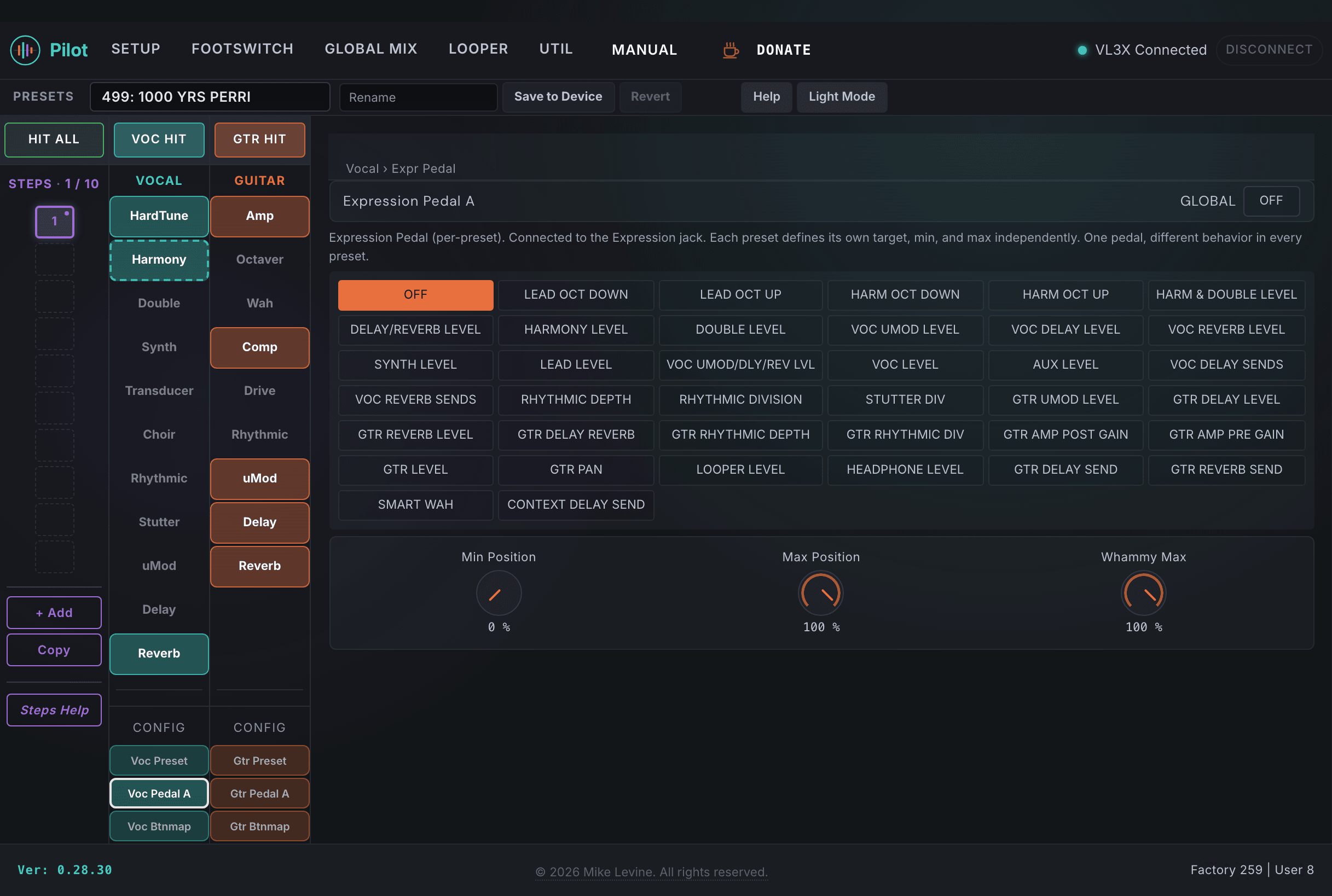
The VL3/x supports expression pedal input. The Expression Pedal subcategory in Pilot stores the pedal assignment and range for the vocal expression pedal. These are per-preset settings, so each preset can have the pedal doing something different.
Expression Pedal Parameters
| Parameter | Range | What it does |
|---|---|---|
| EXPRESSION PEDAL | 0-37 (enum: expr_pedal_function) | The function assigned to the expression pedal in this preset. 38 possible assignments covering vocal effect parameters, volume, whammy, and more. The full list includes things like harmony voice level, pitch shift amount, delay level, reverb level, and whammy pitch. Set this to the parameter you want to sweep live with your foot. |
| EXP MINPOS | 0-100 | The value of the assigned function when the pedal is at its heel-down (minimum) position. This is the parameter value at 0% pedal travel. Scaling the min and max independently means you can restrict the pedal to a useful range of a parameter rather than sweeping the full range. |
| EXP MAXPOS | 0-100 | The value of the assigned function when the pedal is at its toe-down (maximum) position. Setting MINPOS and MAXPOS to the same value effectively disables the pedal sweep for this assignment. Setting MAXPOS below MINPOS reverses the pedal direction. |
| VOC WHAMMY MAX | 0-100 | Maximum pitch shift amount for the vocal whammy effect when the pedal function is assigned to whammy. Sets the ceiling of how far up (or down) the whammy can pitch-shift the voice at full pedal travel. Works together with EXP MAXPOS to scale the effective range. |
| GLOBAL | On / Off | When On, this preset uses the device-level global expression pedal assignment rather than the per-preset values stored here. When Off, the settings in this preset are active. |
ButtonMap
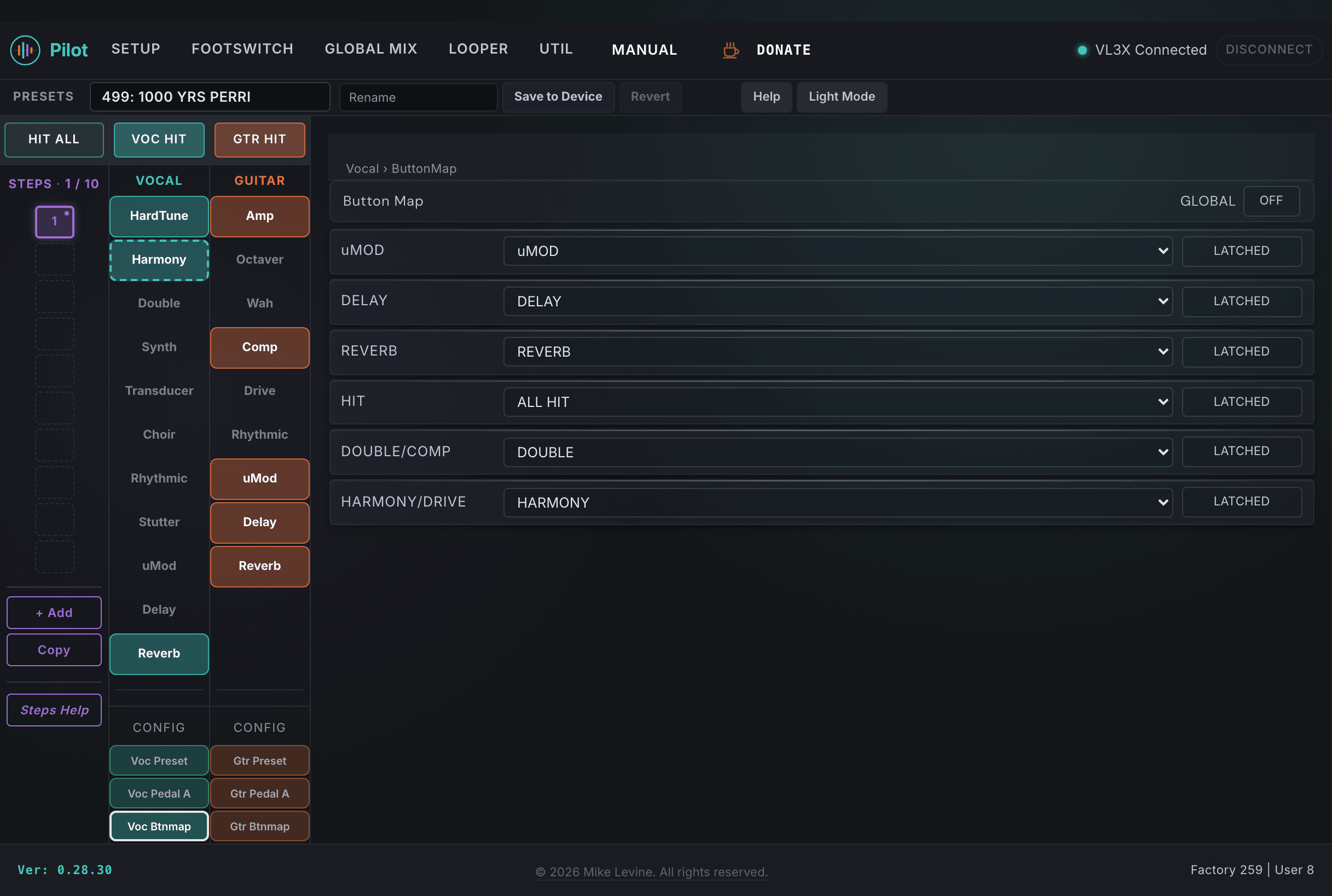
ButtonMap assigns functions to the physical footswitches on the VL3/x for the current preset. The device has six performance buttons: uMod, Delay, Reverb, HIT, Double/Comp, and Harmony/Drive. Each gets its own function assignment and a mode (momentary or latching). Pilot surfaces all of these plus the HIT STATE flag.
This subcategory is one of the most important for live performance. Getting ButtonMap right per-preset means your feet never have to leave the stage floor looking for a control that isn't where you expect it.
ButtonMap Parameters
| Parameter | Range | What it does |
|---|---|---|
| HIT | 0-37 (enum: button_function) | Function assigned to the HIT button. HIT is the main performance trigger on the VL3/x. Common assignments include toggling all vocal effects at once, activating a specific effect, or triggering a preset-level action. 38 possible functions. |
| HIT MODE | 0-1 (enum: button_modifier) | Trigger behavior for HIT: Momentary (active only while held) or Latching (toggles on each press). Momentary is useful for effects you want only while your foot is down; latching is better for effects you want to leave on hands-free. |
| HIT STATE | On / Off | The saved on/off state of the HIT function for this preset. When you load the preset, the HIT-controlled effect starts in the state stored here. If HIT STATE is Off, the HIT-controlled effect starts bypassed; if On, it starts active. |
| HARMONY/DRIVE | 0-37 (enum: button_function) | Function assigned to the Harmony/Drive button. Typically used to toggle Harmony on and off or to engage a drive effect on the guitar side, but any of the 38 button functions can be assigned here. |
| HARMONY/DRIVE MODE | 0-1 (enum: button_modifier) | Trigger mode for the Harmony/Drive button. |
| DOUBLE/COMP | 0-37 (enum: button_function) | Function assigned to the Double/Comp button. Typically used to toggle Double or the compressor, but assignable to any function. |
| DOUBLE/COMP MODE | 0-1 (enum: button_modifier) | Trigger mode for the Double/Comp button. |
| uMOD | 0-37 (enum: button_function) | Function assigned to the uMod button. Typically toggles the vocal uMod effect. |
| uMOD MODE | 0-1 (enum: button_modifier) | Trigger mode for the uMod button. |
| DELAY | 0-37 (enum: button_function) | Function assigned to the Delay button. Typically toggles vocal delay. |
| DELAY MODE | 0-1 (enum: button_modifier) | Trigger mode for the Delay button. |
| REVERB | 0-37 (enum: button_function) | Function assigned to the Reverb button. Typically toggles vocal reverb. |
| REVERB MODE | 0-1 (enum: button_modifier) | Trigger mode for the Reverb button. |
| GLOBAL | On / Off | When On, this preset uses the device-level global ButtonMap assignments rather than the per-preset values stored here. |
Preset Parameters
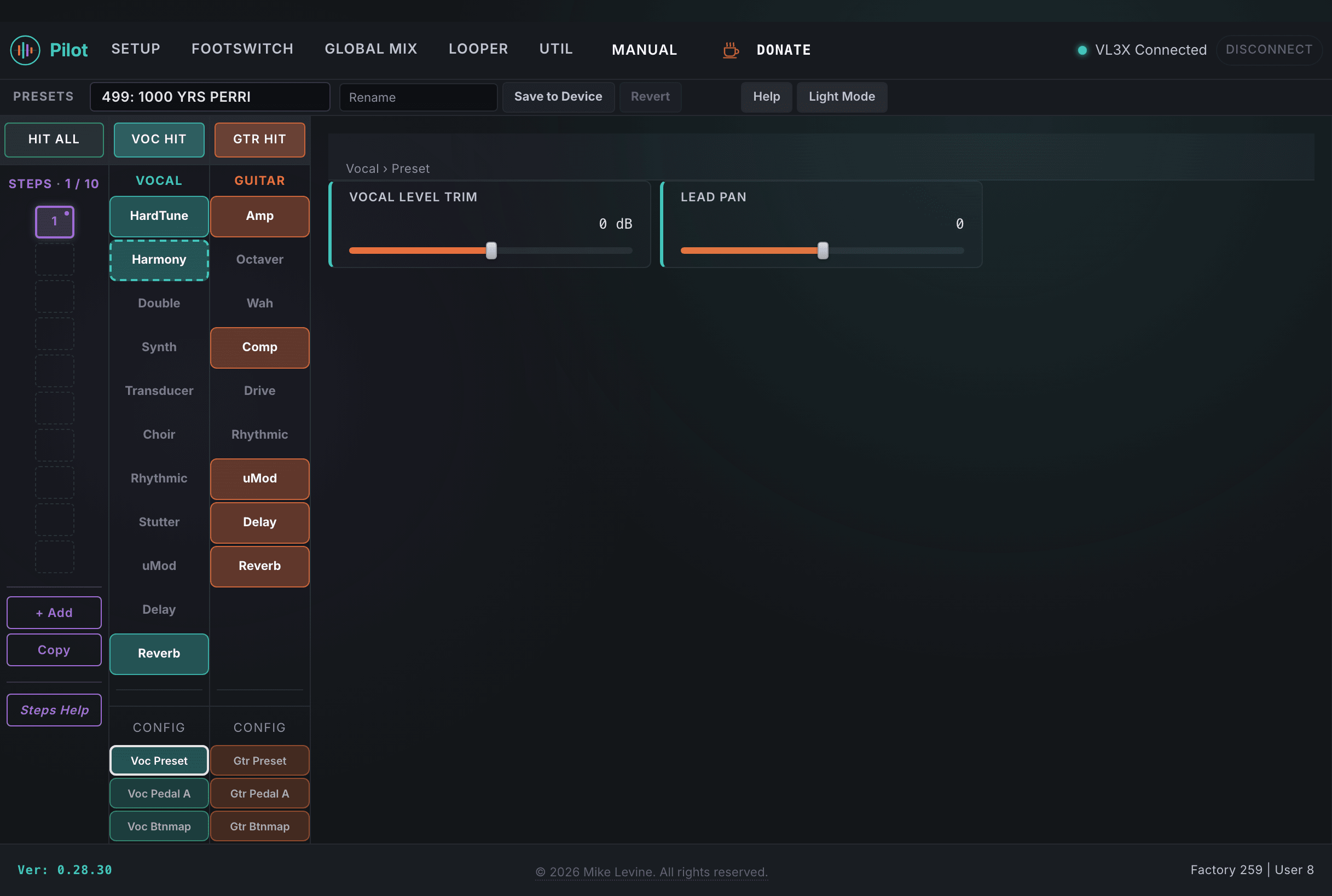
The PRESET subcategory stores per-preset parameters that affect the overall vocal mix at the preset level, separate from any individual effect's settings. These are not effect parameters; they are preset-level adjustments that sit on top of the entire vocal signal path.
There are also two additional preset-level parameters worth knowing about: KEY and SCALE, which live in the Harmony subcategory but govern how scale-based effects interpret note inputs across the whole preset. Those are documented in the Harmony section.
Preset-Level Parameters
| Parameter | Range | What it does |
|---|---|---|
| VOCAL LEVEL TRIM | -6 to +6 dB | Per-preset trim applied to the overall vocal output level. Use this to compensate for presets that are significantly louder or quieter than others, normalizing the output across your setlist without having to touch individual effect levels. A preset with heavy reverb and delay may need a small negative trim to match a dry spoken-word preset. |
| LEAD PAN | -100 to +100 | Stereo pan position for the lead vocal at the preset level. -100 is hard left, +100 is hard right, 0 is center. In most live situations you want the lead vocal centered, but in a specific production context (studio recording, playback alongside a fixed backing track) a slight offset can create spatial separation between the lead and other elements. |