
Presets & Steps
The VL3/x stores up to 500 presets in flash memory. Each preset is a complete snapshot of every vocal and guitar effect parameter, plus footswitch assignments, expression pedal configuration, and mixer levels. Pilot gives you a visual interface for browsing, editing, saving, and exporting those presets, with a lot more clarity than the device's own two-line display.
Preset Model
The VL3/x has 500 numbered slots, labeled 1 through 500. The first 254 slots are factory presets: sounds that shipped with the device and that can be restored to their original state even after you overwrite them. Slots above that are user slots. There are also five special template slots (490-494) that Pilot uses internally as blank-preset sources when initializing new slots.
Every slot holds one preset. A preset contains:
- All vocal effect parameters (HardTune, Harmony, Double, uMod, Delay, Reverb, Transducer, Choir, and more)
- All guitar effect parameters (Amp, Pedals, Creative, Delay, Reverb)
- Per-preset Footswitch (ButtonMap) and Expression Pedal assignments
- Per-preset mixer levels (lead level, guitar level, sends)
- Step configurations (see below)
When you connect Pilot to your device, it reads all 500 slots. That scan takes a few seconds. Once complete, the full library is in memory and every preset is accessible without further device reads until you make changes.
Steps
Steps are preset-within-preset configurations stored inside a single preset slot. The VL3/x supports up to 10 steps per preset. Step 1 is the master step: it always exists and represents the preset itself, and steps 2 through 10 are step-within-preset variants layered on top of it. Think of them as scenes you can step through live with a footswitch on the device. Each step can hold a different state for the current preset's effects, letting you build a multi-section sound without using multiple preset slots.
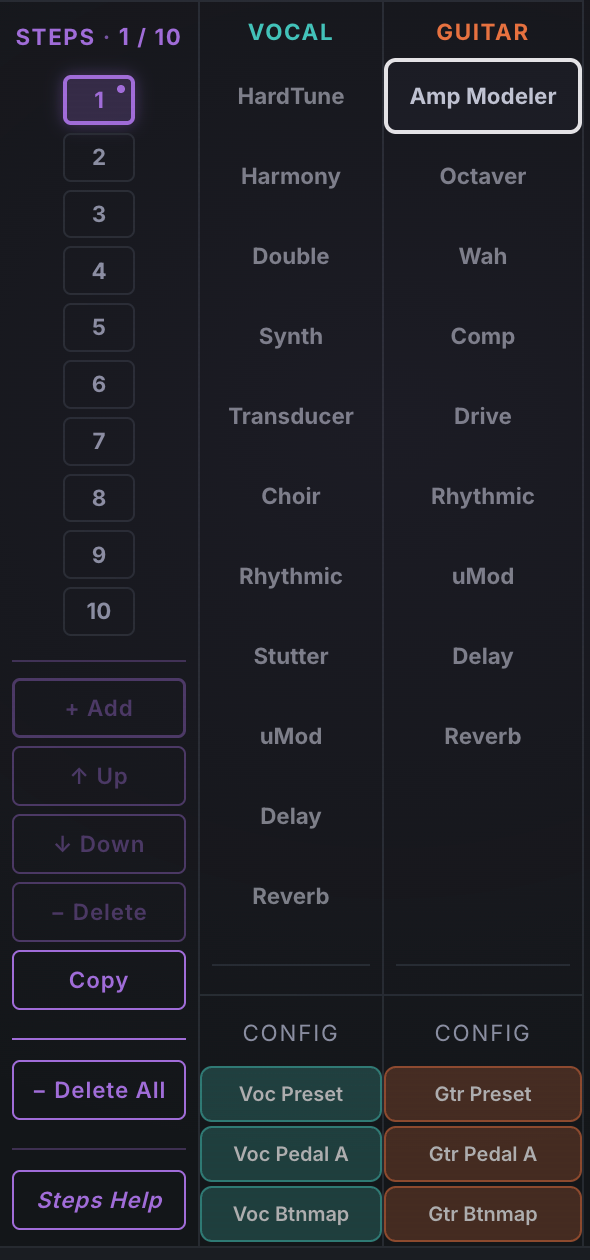
The step rail is Pilot's dedicated step surface. It lives in the left sidebar of the editor and is always visible, showing all steps for the currently loaded preset as a vertical stack of numbered tiles, with dashed empty slots below indicating how many more you can add (up to 10). The step you are currently editing is highlighted with a DSP-purple fill and a small dot in its corner. From the rail you can:
- Click a step tile to switch to editing that step in Pilot
- Add a new step at the end of the chain (+ Add works from any step and the new step always lands at the end, never beside the one you are on; the button dims once the preset holds 10 steps; each new step starts as a copy of the previous step, matching the VL3/x)
- Move a step up or down in the sequence (Step 1 cannot be moved, and Step 2 cannot move up past the master)
- Delete the current step, or Delete All to collapse the preset back to a single step (Step 1 cannot be deleted; the remaining steps renumber)
- Copy the current step over another step, or onto a new slot at the end of the chain
Browsing Presets
The preset bar runs across the top of the editor, just below the top bar. It gives you two ways to navigate your 500 slots: a text search field and a slot number input.
The search field filters the preset list by name as you type. The results appear in a dropdown, and clicking any result loads that preset into the editor (it also reads the current state of that slot from the device). The slot number input lets you jump directly to a slot by number.
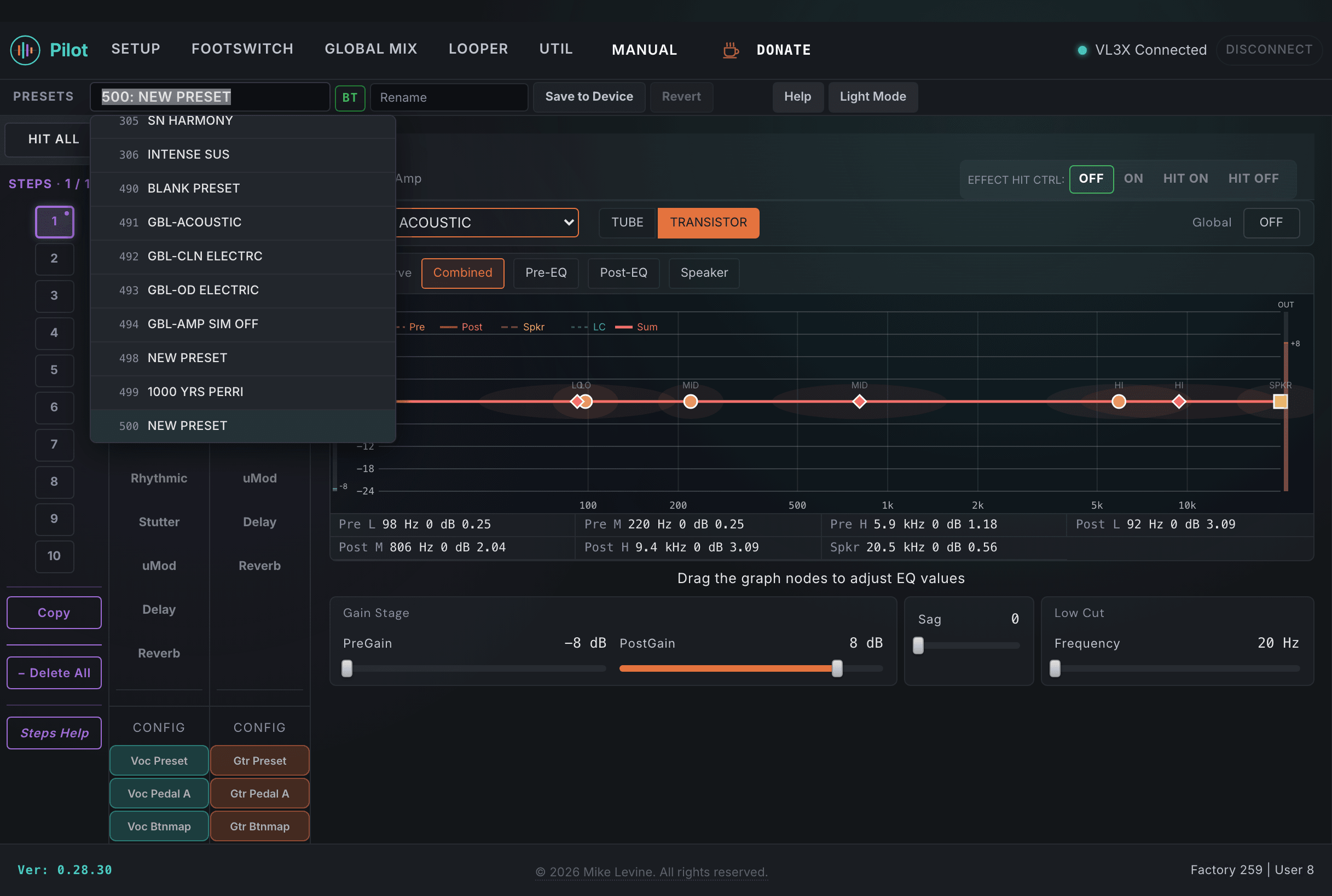
The previous and next slot buttons step through slots in order. This is useful for auditioning presets in sequence. Each time you navigate to a new slot, Pilot loads that preset's parameter values and the editor updates to match.
Editing Presets
Editing in Pilot is live. Every control change sends a SysEx message to the device immediately, so you hear the result in real time. The top bar tracks your changes with a counter that increments for every parameter you modify. This is the dirty indicator: when it shows a nonzero count, you have unsaved edits.
The counter tells you two things: that you have made changes, and roughly how many. A count of 1 or 2 after tweaking a single knob is normal. A count in the twenties means you have been deep in an editing session and should probably save before moving on.
The Revert button in the top bar discards all unsaved changes and re-reads the preset from the device. Use this if you want to start over from the last saved state, or if you want to confirm the device state matches what Pilot is showing.
Saving Presets
The Save button in the preset bar writes the current parameter values from Pilot back to the device, into the currently selected slot. The device's flash memory is updated. After a successful save, the change counter resets to zero.
Saving only affects the currently active slot. Other slots are not touched. If you have made edits to multiple slots during a session by navigating between them, each slot needs to be saved individually. Pilot does not batch-save across slots automatically.
Exporting Presets
The Export button in the preset bar lets you save the current preset to a file on your computer. Two formats are available:
JSON Export
JSON export saves a structured text file containing all parameter values for the current preset, written as a JSON object with parameter names, values, and metadata. This format is human-readable and diff-able: you can open it in a text editor to compare presets, check what changed between versions, or archive your work with meaningful version history.
JSON files can be imported back into Pilot later. They are the best format for personal archives, sharing on forums, and building preset packs.
SysEx Export
SysEx export saves a raw binary dump of the preset in TC-Helicon's SysEx format. This is the format the device itself speaks. Any SysEx librarian app can load and send a .syx file, which makes this format useful for sending presets between devices, uploading via third-party tools, or keeping an exact hardware-compatible copy of a preset.
SysEx files are not human-readable but they are universally compatible with SysEx tools. If you want to send a preset to someone who does not use Pilot, a .syx file is the right format.