
SysEx Workbench
Every time you change a parameter in Pilot, a SysEx command is generated and sent to your VL3X. The SysEx Workbench captures those commands so you can reuse them: export them for a MIDI controller, paste them into a setlist app, save them for archival, or share them with other VL3X owners.
The Workbench has three tools, each on its own card:
- Capture collects every SysEx command generated by your parameter edits, organized by preset and global changes.
- Export formats your captured commands for the app or controller you are targeting, with copy-to-clipboard and save-to-file options.
- Reverse Lookup decodes SysEx commands from any source, so you can see exactly what a command does before using it.
Why SysEx Matters
SysEx is how you get parameter-level control of your VL3X from external gear. Unlike loading a preset (which replaces everything at once), a SysEx command changes one specific parameter and leaves everything else untouched. That distinction matters: "I want this harmony arrangement on top of my current guitar tone" is a SysEx job, not a preset job.
Here are four ways performers use the Workbench in practice.
Vocal-Only Performer
You use a setlist app like onSong or Songbook on your iPad. Each song in your setlist needs different harmony, HardTune, and double settings. Instead of tap-dancing on the pedal between songs, you embed SysEx commands in each song file. When you open a song, the app sends the commands over USB-MIDI and the VL3X adjusts automatically. The Workbench is where you build those commands: dial in your vocal settings in Pilot, switch to the Workbench, export in onSong or Songbook format, and paste into your setlist.
Guitar-Only Player
You use a hardware MIDI controller (a Morningstar MC-8, for example) to switch between guitar tones during a set. Each button on the controller stores a SysEx preset: a complete amp style, drive level, delay mix, reverb type, whatever you need for that song. The Workbench is the librarian that builds those controller presets. Set up your sound in Pilot, capture the commands, export in MC-8 Compressed format, and paste into the Morningstar Editor.
Full-Rig USB-MIDI Host
You run Stage Traxx 4 (or a similar host) on a laptop or tablet, driving backing tracks and MIDI at the song and set level. SysEx commands fire at specific timestamps during playback: verse one gets one vocal chain, the chorus gets another, the bridge shifts the guitar tone. The Workbench generates and validates those commands before you embed them in your timeline.
Beyond Steps
The VL3X has a built-in step system that lets you cycle through parameter changes within a preset. Steps work, but they are preset-bound, limited in number, and constrained in scope. SysEx commands from an external controller or setlist app can do the same thing with more flexibility: any number of parameter changes, at any point in a song, across any combination of vocal and guitar settings, not bound to a single preset, with silent transitions (no pops).
Capture
The Capture card records every SysEx command generated by your parameter edits. Change a setting anywhere in Pilot (vocal, guitar, setup, or mix), and the corresponding command appears here automatically.
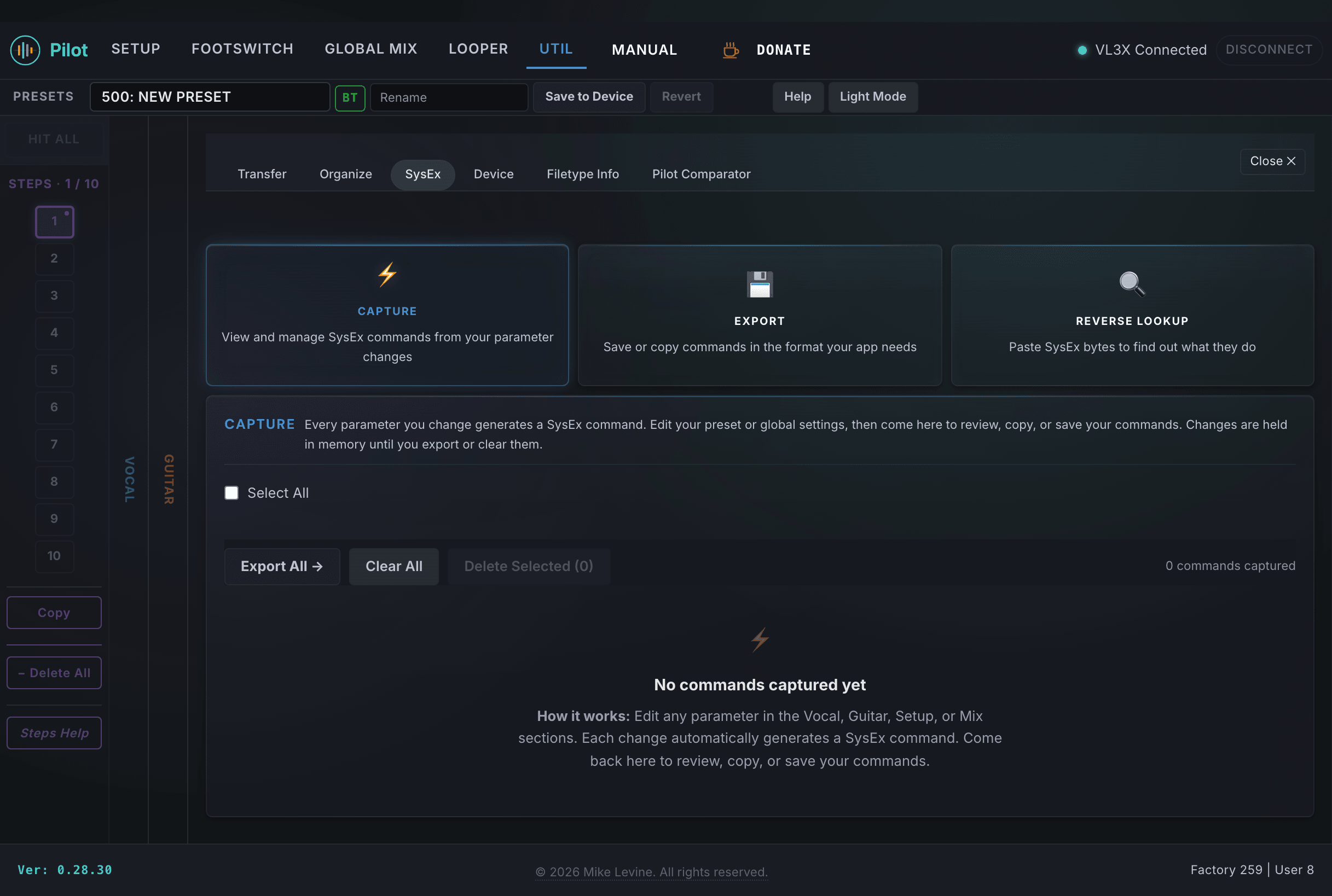
How Commands Appear
Each captured command shows a decoded label with the parameter name and its new value, color-coded by category. For example, changing Harmony VOICE 1 KEY to E Major produces a line reading "Vocal Harmony VOICE 1 KEY → E Major" with the full hex string alongside it.
The colors tell you which domain each command belongs to: teal for Vocal, orange for Guitar, gold for Setup, and green for Mix. This makes it easy to scan a long list and see at a glance what parts of your sound each command affects.
Commands are grouped into two sections: Preset Changes (parameters that belong to the current preset) and Global Changes (system-level parameters like Setup, Mix, or Footswitch settings). Each section shows a count.
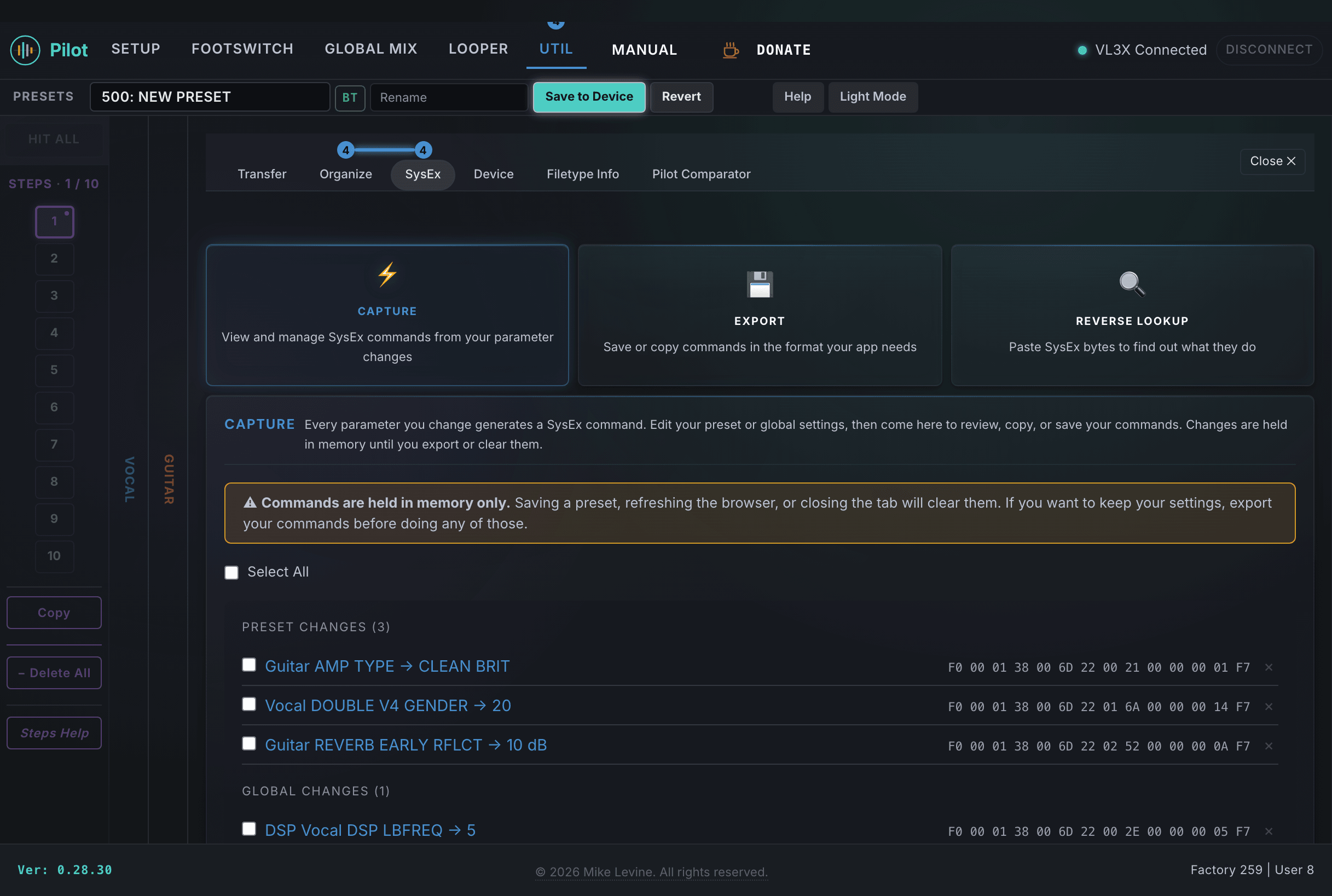
Memory Warning
Captured commands are held in memory only. Loading a different preset, refreshing the browser, or closing the tab clears the list. If you want to keep your commands, export them before doing any of those things. The warning banner at the top of the Capture card is a reminder.
Selection and Deletion
Each command has a checkbox. Use individual checkboxes to select specific commands, or use Select All to grab everything. The Delete Selected button removes only the checked commands from the capture list. Clear All removes everything (with a confirmation prompt).
Deleting a command from the capture list does not undo the parameter change on the device. The SysEx was already sent when you edited the parameter. Deleting only removes it from this list.
Moving to Export
When you are ready to format your commands for a target app or controller, click Export All to switch to the Export card. All captured commands carry over.
Export
The Export card formats your captured commands for the app or hardware controller you are targeting. Select a format, preview the output, then copy or save.
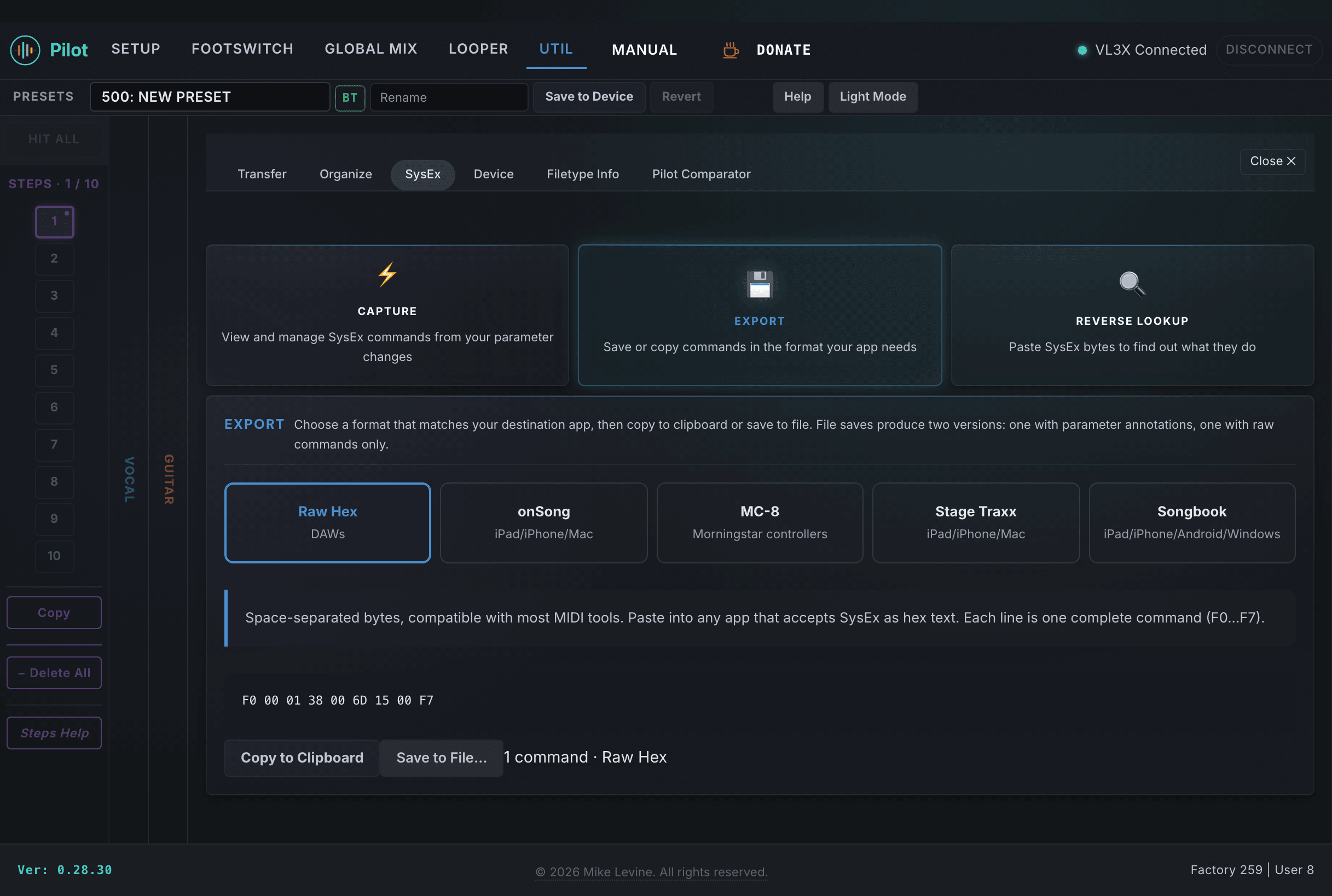
Format Selector
Five format cards are available, each labeled with the destination platform:
- Raw Hex (DAWs, MIDI tools)
- onSong (iPad/iPhone/Mac)
- MC-8 (Morningstar controllers)
- Stage Traxx 4 (iPad/iPhone/Mac)
- Songbook (iPad/iPhone/Android/Windows)
Selecting a format updates the preview and shows a guidance note explaining how to paste the output into that specific app.
Preview
The preview area shows all captured commands in the selected format. The first line is always the Editor Enable command, which tells the VL3X to accept incoming parameter writes. Your parameter commands follow.
Here is the same command (Harmony VOICE 1 KEY set to E Major) in all five formats:
Raw Hex:      F0 00 01 38 00 6D 22 00 21 00 00 00 05 F7
onSong:       MIDI: F0 00 01 38 00 6D 22 00 21 00 00 00 05 F7
MC-8:         F0000138006D22002100000005F7
Stage Traxx:  [midi@00:00.00: SXF0 00 01 38 00 6D 22 00 21 00 00 00 05 F7]
Songbook:     {midi: F0.00.01.38.00.6D.22.00.21.00.00.00.05.F7}
Copy to Clipboard
Copies all commands in the selected format. Paste directly into your setlist app, DAW, or controller editor.
Save to File
Saves two files to your downloads folder:
- [name]-annotated.txt: Each command preceded by a comment line showing the decoded parameter name and value. Use this as documentation for your controller setup.
- [name]-unannotated.txt: Raw commands only, ready for import into other tools.
You choose the base filename. The default is vl3x-sysex.
Reverse Lookup
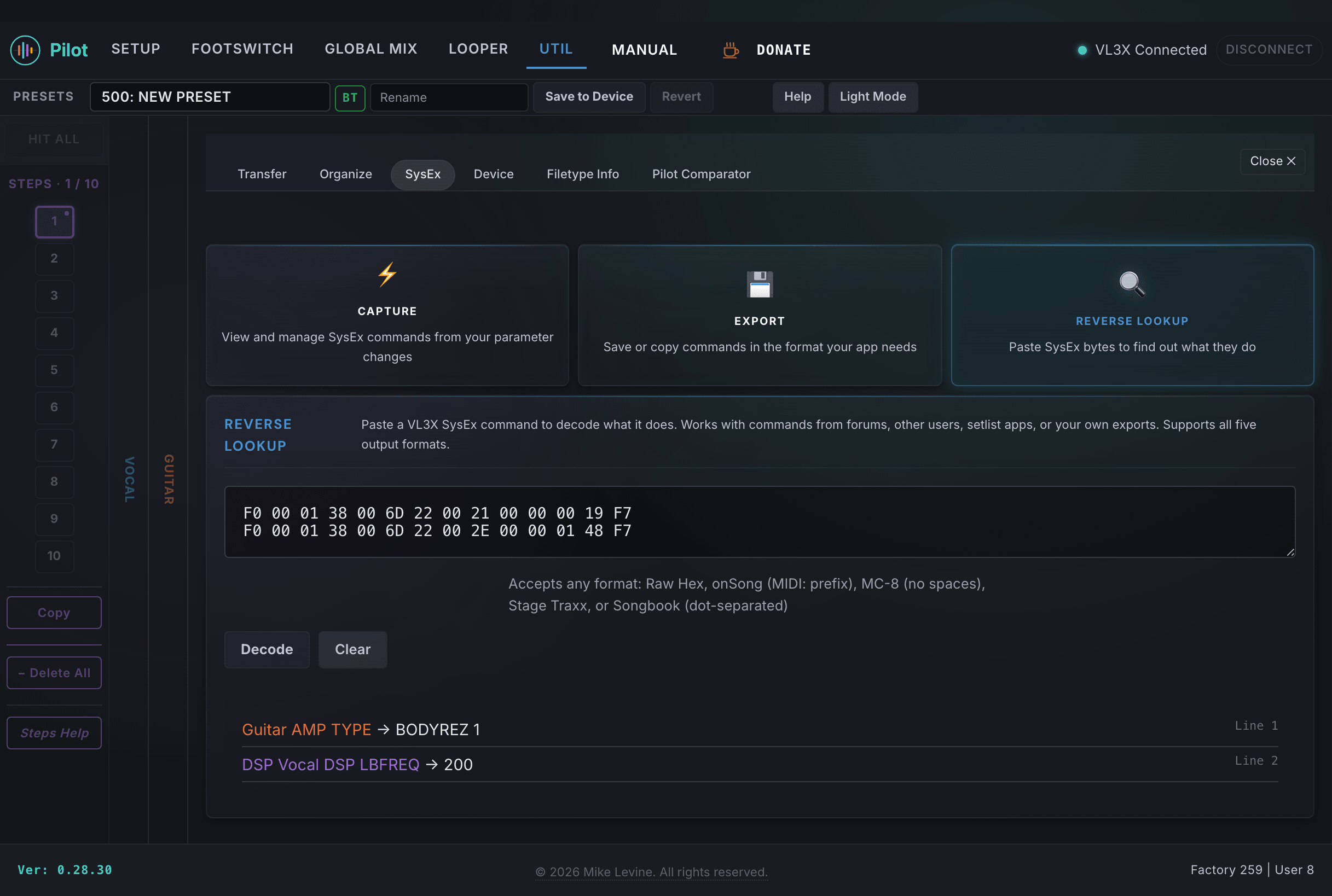
The Reverse Lookup card decodes SysEx commands from any source. Paste a command (or a block of commands), click Decode, and see exactly what each one does: parameter name, value, category, and whether it targets a preset or a global setting.
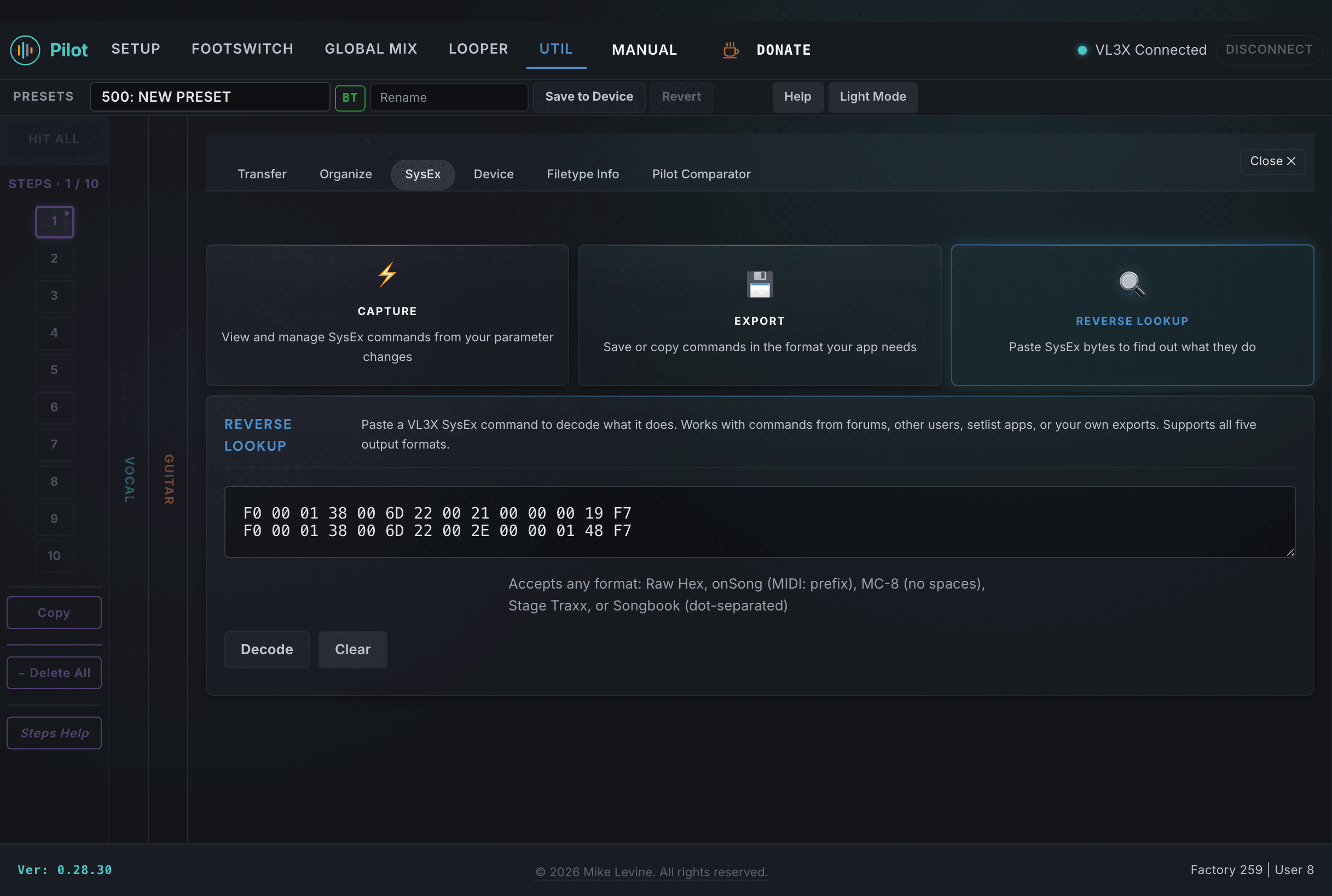
What It Decodes
For each command, Reverse Lookup shows:
- The parameter name (e.g., Harmony VOICE 1 KEY)
- The decoded value (e.g., E Major)
- The category (Vocal, Guitar, Setup, Mix) with its color
- Whether it targets a preset or global setting
- The raw numeric value and hex equivalent
When you paste multiple commands (one per line), each line is decoded separately and displayed as a summary row with category colors.
Validating Shared SysEx
Someone in the Facebook group shares a block of SysEx commands for a harmony arrangement they built. Before you send it to your device, paste it into Reverse Lookup. You will see every parameter the commands touch and what values they set. No surprises.
Sharing Your Own Presets as SysEx
You built a great vocal chain and want to share the exact settings with another VL3X owner. Export your commands from the Capture card, then paste them into Reverse Lookup to verify the output reads correctly before posting. The other person pastes your commands into their Reverse Lookup to see what they do, then sends them to their device.
This is different from sharing a preset file. A preset file replaces everything: the entire vocal chain, the guitar chain, the expression pedal assignments, all of it. SysEx commands are selective: you share only the parameters that matter for the sound you are describing.
Format Reference
This section covers each format in detail: what it looks like, who it is for, and how to get the output into the target app.
Raw Hex
Raw format outputs space-separated hexadecimal bytes, one SysEx message per line. This is the most universal format: every MIDI tool that sends SysEx can accept it, and it is what you would paste into MIDI-OX, SysEx librarians, hardware controller editors that speak standard hex input, and most scripting environments.
F0 00 01 38 00 6D 22 00 21 00 00 00 05 F7When to use Raw: any time you need to paste hex into a tool that is not one of the named app formats below. It is also the fallback for platforms not listed here.
onSong
onSong is an iOS setlist and lyrics app used by a lot of performing musicians. It supports inline MIDI commands inside song charts, so you can have the app send a SysEx message to your VL3X automatically when you open a song.
The onSong format outputs the same space-separated hex bytes as Raw but adds the MIDI: prefix that onSong expects:
MIDI: F0 00 01 38 00 6D 22 00 21 00 00 00 05 F7In onSong, multiple SysEx commands for a single song are grouped together. Use Copy to Clipboard in the Workbench Export card to grab all commands at once, then paste the block into the song's MIDI setup. Set the trigger to "On Load" so it fires when you open the song.
MC-8 Compressed
The Morningstar MC-8 is a powerful MIDI foot controller with a software editor that accepts SysEx strings in a compressed (no-spaces) hexadecimal format. Standard space-separated hex will not parse correctly in the MC-8 editor.
F0000138006D22002100000005F7To use this with the MC-8: open the Morningstar Editor, navigate to the message you want to program, select SysEx as the message type, and paste the output from the Workbench Export card. The MC-8 firmware handles the framing; you just supply the data bytes.
Each command produces one compressed string. If you want a single button press to set multiple parameters, add multiple SysEx messages to the same button in the MC-8 editor, one per line. The MC-8 sends them in order with its configured inter-message delay.
Stage Traxx 4
Stage Traxx 4 is a live performance tool for Mac and iOS that plays backing tracks and can send MIDI commands at specific timestamps in a track. The format includes inline timing information so Stage Traxx knows when to fire each command relative to the song timeline.
[midi@00:00.00: SXF0 00 01 38 00 6D 22 00 21 00 00 00 05 F7]The timestamp is in mm:ss.xx format (minutes, seconds, centiseconds). The Workbench outputs 00:00.00 as a placeholder; you edit the timestamp in Stage Traxx to match when you want the command to fire during playback.
To use this: in Stage Traxx 4, open your backing track project, add a MIDI event at the desired time marker, and paste the output from the Workbench Export card into the event's SysEx field. ST4 will fire the command at that point during playback.
Songbook
Linkesoft Songbook is a chord chart and setlist app available for iOS and Android. It supports MIDI commands embedded in song files, using a dot-separated hex format for SysEx data.
{midi: F0.00.01.38.00.6D.22.00.21.00.00.00.05.F7}To use this in Songbook: open a song for editing, add a MIDI command block, and paste the output from the Workbench Export card. Set the trigger (on song load, on page turn, or at a specific chord position) in Songbook's editor.
Byte Structure
All five formats encode the same 14-byte TC-Helicon parameter write message:
F0: SysEx start00 01 38: TC-Helicon manufacturer ID00: Device ID6D: Model ID (VL3X)22: Parameter write command[page] [param]: Parameter address (e.g.,00 21for sysex_id 33)[b0] [b1] [b2] [b3]: Four value bytes, 7-bit encodedF7: SysEx end
Tips
- Capture only what differs. You do not need to capture every parameter. If you are building a SysEx preset for a controller button that switches between two guitar tones, capture only the parameters that change between those tones.
- Use annotated exports as documentation. The annotated file from Save to File includes the decoded parameter name above each hex string. Keep these files alongside your controller project as a reference for what each button does.
- Validate before sending. When you receive SysEx commands from another source (a forum post, a shared file, a backup), paste them into Reverse Lookup before sending them to your device. Verify that the parameters and values are what you expect.
- Editor Enable is automatic. The Export card prepends the Editor Enable command to every export. This tells the VL3X to accept incoming parameter writes. You do not need to add it yourself.