
Utilities
The Util category in Pilot contains the tools that manage your preset library rather than your sound. Transfer handles import, export, rearranging, and full backup/restore between device and computer. Organize handles preset slot operations: copying, initializing, deleting and restoring factory defaults, rolling unsaved edits across many presets, and backing up global settings. Device shows hardware info, prints a preset list, and updates firmware. The Util tab bar also includes SysEx (the SysEx Workbench) and Pilot Comparator, each documented on its own page, plus Filetype Info, which matches the File Type Reference below. These utilities work on your preset library as a whole, not on individual parameters.
Transfer
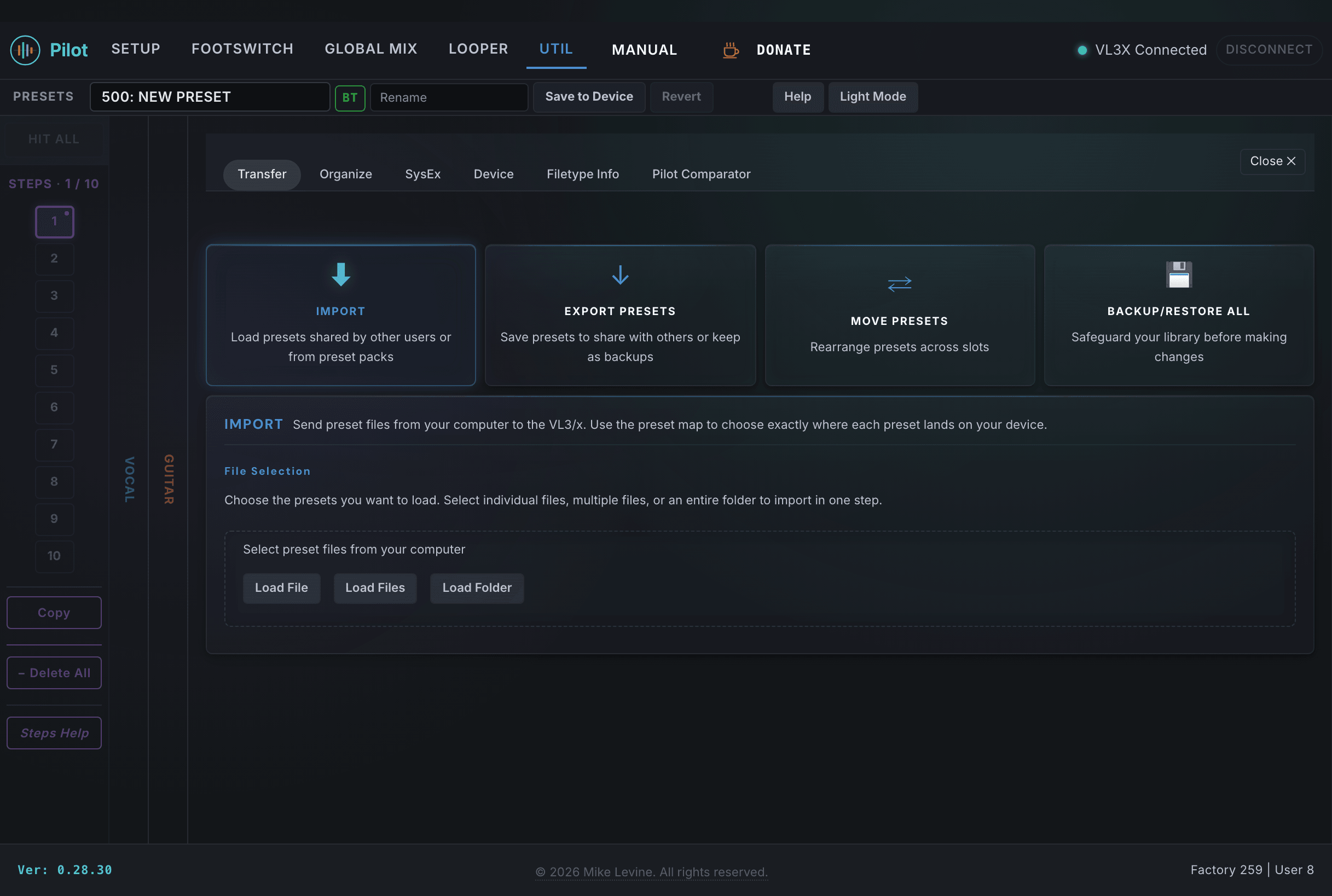
The Transfer tab in Util handles preset movement between your device and your computer. Four cards cover the workflows, in order: Import, Export Presets, Move Presets, and Backup/Restore All.
Import
Import loads a preset file from your computer and sends its presets to the device. You select the file (a .tch bundle or individual .syx files), then use the preset map to choose exactly which slots on the device receive the imported presets.
The Preset Picker shows two grids: Source Presets on the left and all 500 Device Slots on the right. Drag (or tap) each incoming preset onto a destination slot, multi-select with Cmd/Ctrl+click to place several consecutively, or for a single preset type a destination slot number (1 to 500). Click Send to Device to write the placed presets. Import only writes the slots you explicitly assign; if any target slot is already occupied, an Overwrite confirmation lists what will be replaced before anything is written.
Export Presets
Export Presets lets you save presets from your library to files on your computer. You pick slots from the 500-slot preset map, then save them one of three ways:
- Save All: Exports every occupied preset to a single
.tchbundle. - Save Selected: Exports the map-selected presets to a single
.tchbundle. A multi-preset container compatible with other Pilot users. - Save Individual: Exports each selected preset as a separate
.syxfile, named by slot number and preset name. Use this when sharing individual presets with people who use SysEx librarians or other tools.
Export only reads from the device and writes files to your computer, so it makes no changes to the device and has no confirmation gate.
Move Presets
Move Presets provides a drag-and-drop interface for rearranging presets across the 500 slot positions without re-saving each one. Two side-by-side grids show your library:
- Live Layer (left): The current device state. Occupied slots are highlighted; empty slots are dim. Multi-step presets show a corner triangle indicator.
- Copy Layer (right): A staging area for planned moves. Initially empty.
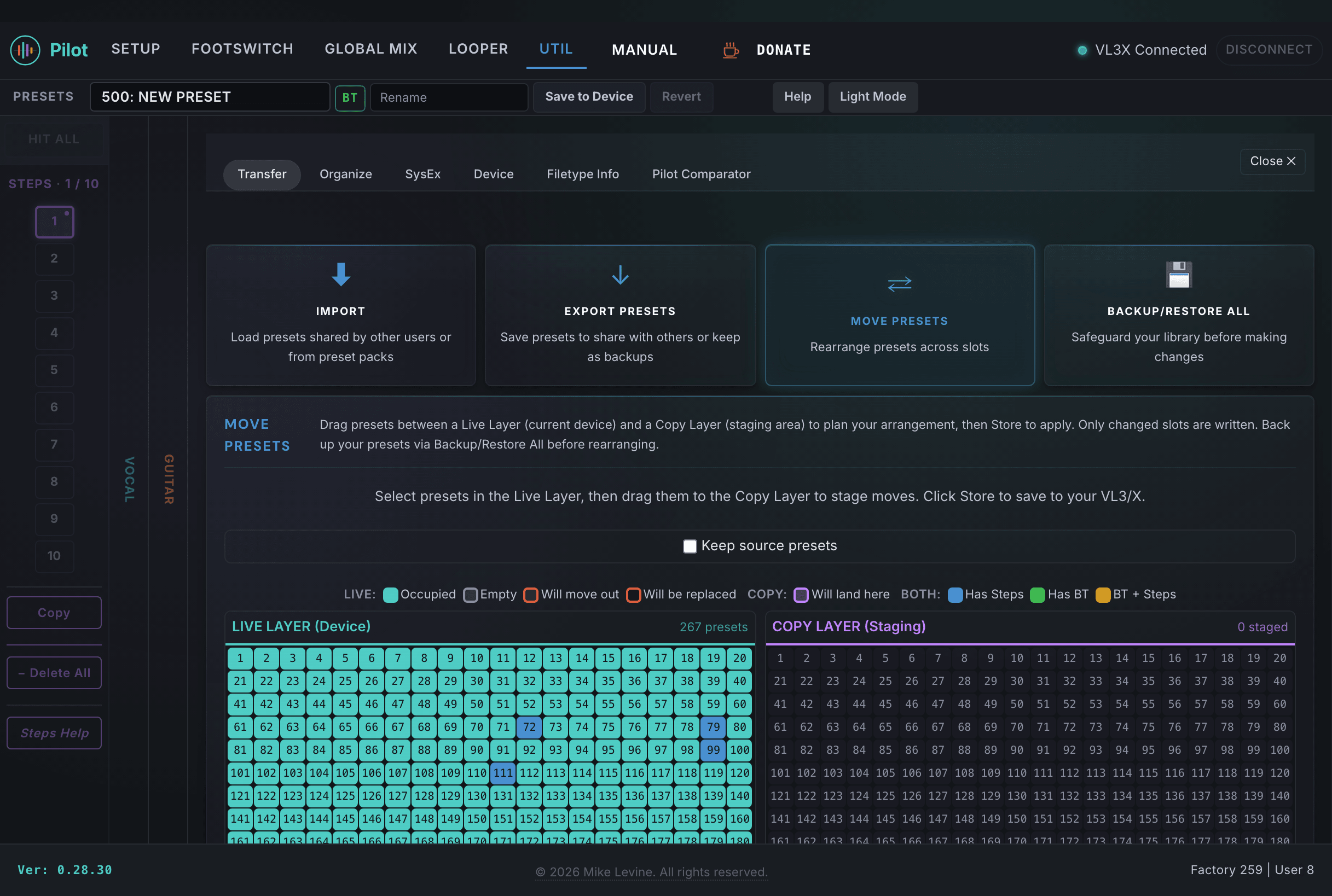
Workflow: Click slots in the Live Layer to select them (Shift+click for range selection). Drag selected slots onto the Copy Layer to stage them at new positions. Multiple selected presets are placed in consecutive slots starting from the drop target. A Keep source presets checkbox controls whether the original slots are left in place or cleared. Right-click (or Ctrl+click) a staged entry to unstage it. Hover any slot in either grid to see its preset name. A color-coded legend grouped by grid scope shows slot states: LIVE shows Occupied, Empty, Will move out, and Will be replaced; COPY shows Will land here; BOTH shows the Has Steps, Has BT, and BT + Steps markers.
When ready, click Store to write all staged moves to the device. A confirmation dialog lists every move (source slot, destination slot, preset name), warns that the change cannot be undone, and requires explicit approval. Only changed slots are written. Progress updates during the read, write, and clear phases. The Clear button removes all staged moves without writing anything.
Your gig order changed and you need presets 1 through 10 to reflect the new song sequence. Select the presets in the Live Layer, drag them into the correct order on the Copy Layer, and Store writes the rearrangement in one batch. No sounds are modified, only slot positions change.
Your working presets are scattered across slots 12, 87, 203, and 455. Move them into a contiguous block so you can step through them with a single Program Change increment on your MIDI controller.
Backup/Restore All
Backup/Restore All saves and restores your device's entire state in a single file. Backup reads every initialized preset plus all global settings (mic configuration, EQ, guitar input, mixer levels, and footswitch assignments) and writes them to one .vl3xbak file. Restore Backup reads a previously saved backup and writes its presets and/or settings back to the device. A full backup or restore typically takes 5 to 7 minutes.
The backup file is named automatically from the current date and time (for example VL3X_device_backup_<date-time>.vl3xbak). Save it somewhere you will find it later. Restore opens a confirmation dialog where you can choose to restore Presets, Global Settings, or both, and warns that the device will be unavailable during the restore and that matching device data will be overwritten. Restore also accepts .tch bundles and legacy .json backups from earlier Pilot versions.
Organize
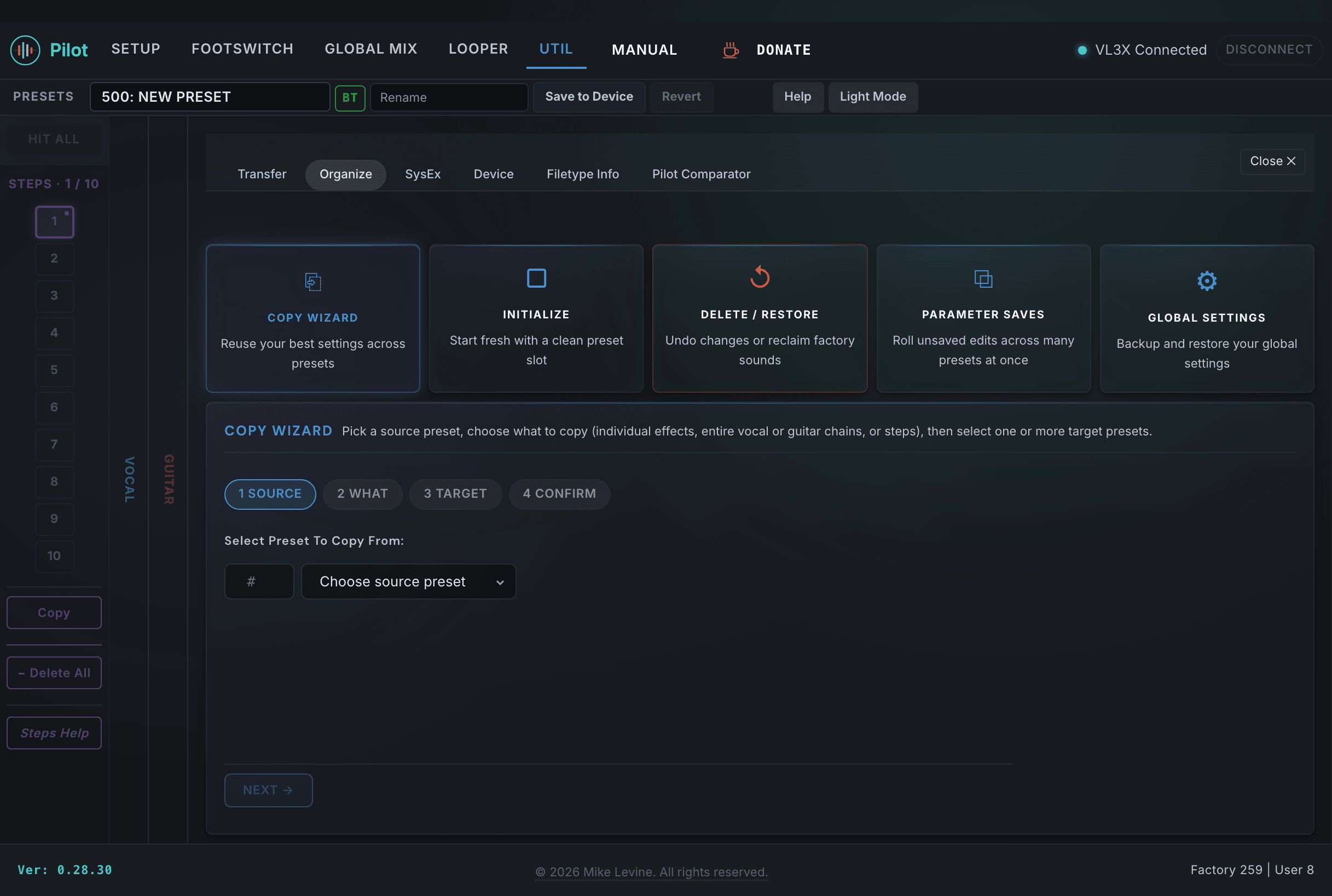
The Organize tab contains tools for managing your preset slots in bulk. Five cards cover the operations, in order: Copy Wizard, Initialize, Delete/Restore, Parameter Saves, and Global Settings. Click a card to open its panel. Only one panel is visible at a time.
Copy Wizard
The Copy Wizard copies portions of one preset into one or more other presets. Use it when you want to replicate a guitar tone, vocal effect chain, or steps across multiple slots without rebuilding from scratch. A four-step guided workflow walks you through the process:
- SOURCE: Select the preset to copy from. Pilot reads the preset data from the device before you can proceed.
- WHAT: Choose what to copy. Guitar effects (Amp, Octaver, Wah, Comp, Drive, Rhythmic, uMod, Delay, Reverb, ButtonMap, Expr Pedal A) and Vocal effects (HardTune, Harmony, Double, Synth, Transducer, Choir, Rhythmic, Stutter, uMod, Delay, Reverb, ButtonMap, Expr Pedal A) are shown as toggleable pills. Each section has an "All" toggle. If the source has multiple steps, a Steps section appears where you can select individual steps to copy. A running tally at the bottom shows your current selection.
- TARGET: Select one or more destination presets. A search filter lets you find presets by name or slot number, and a Hide empty toggle hides blank slots. The source preset is excluded from the list. A time estimate appears based on the number of targets (roughly 0.8 second per target plus about 0.2 second per step written). When copying individual steps to a single target, a step destination mapper lets you choose which step number each source step writes to on the target.
- CONFIRM: Review the source, what you are copying, and all targets. A "Show all" toggle reveals the full target list. Click COPY to execute. Progress updates per preset written. A CANCEL button appears during execution to interrupt the batch.
Only the selected parameters are written to each target. Everything else in the target preset stays unchanged. Re-clicking the Copy Wizard card resets all state and returns to Step 1.
You've dialed in an Amp and Drive combination on one preset that works for your clean tone. You want that same guitar sound on your next 30 gig presets without touching the vocal harmony, delay, or reverb on any of them. Select just the Guitar effects you want, target all 30 presets, and the Copy Wizard writes only those parameters.
Your lead vocal harmony chain sounds great on preset 12, and you want that same harmony, reverb, and delay across every preset in your Saturday night setlist. Select the Vocal effects, pick your targets, and every preset gets the same vocal treatment while keeping its own guitar setup.
You built a complex 4-step preset with verse, chorus, bridge, and outro sections. Another preset needs the same step structure but with different base effects. Copy just the steps from the source into the target, and the step data transfers without overwriting the target's base sound.
Your best guitar tone lives on preset 40 and your best vocal chain lives on preset 88. Copy the guitar effects from 40 into a new preset, then copy the vocal effects from 88 into the same preset. Two sources, one destination, each contributing its own domain.
You want to build a fresh library from one carefully configured starting point. Use the Copy Wizard to copy all Guitar and Vocal effects from your master preset into all 499 other slots, then customize each copy for individual songs.
Initialize
Initialize writes a blank preset (the factory template from slot 490) to one or more slots. Three modes are available:
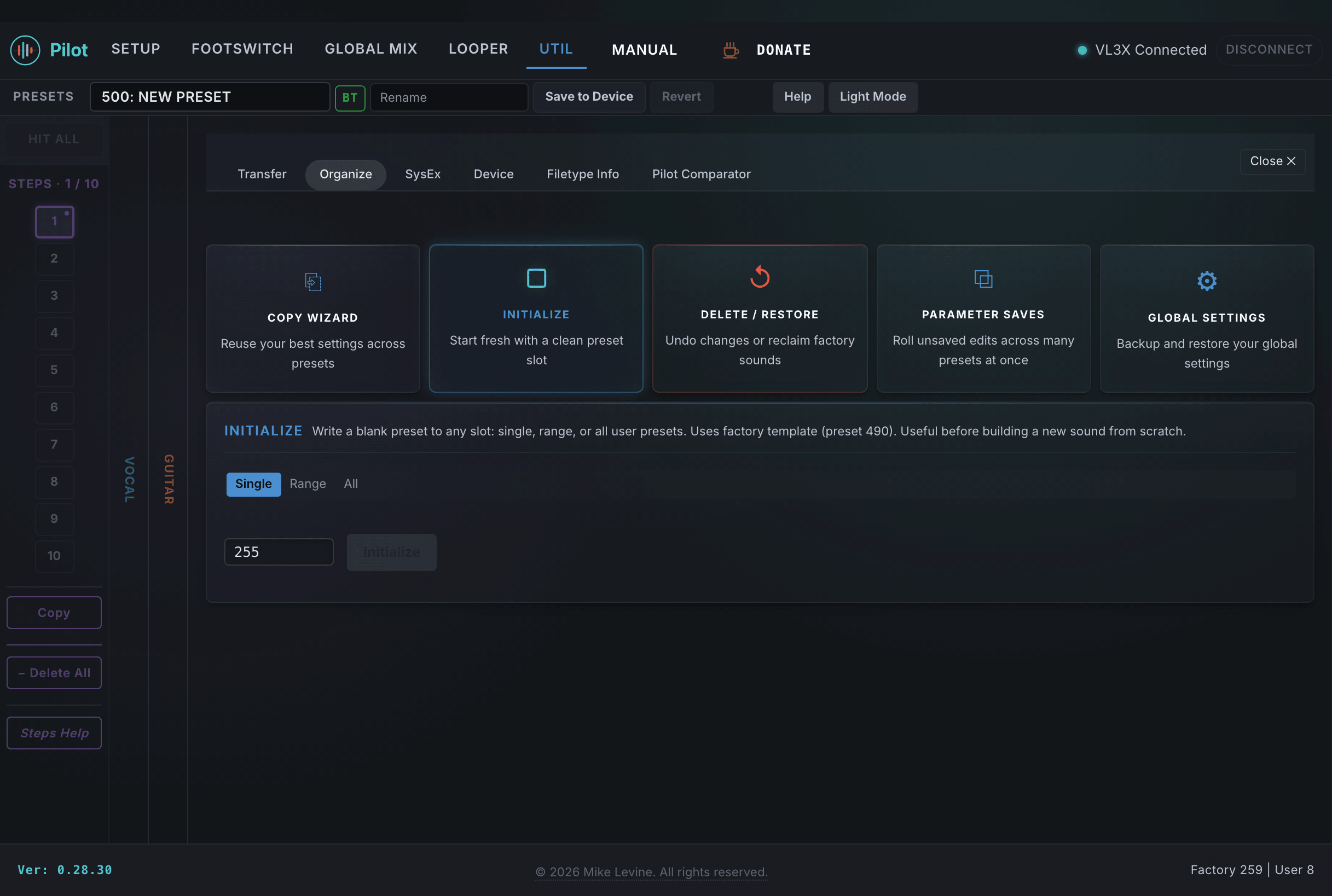
- Single: Enter a slot number and click Initialize.
- Range: Enter slot numbers or ranges (e.g., "255-300", "400") as chips. Press Enter or comma to add each entry. Factory presets (1-254) and template slots (490-494) are rejected with an error message. The slot count and button label update live.
- All: Writes blank presets to all 495 writable slots (1-489 and 495-500). Template slots 490-494 are always preserved. Takes approximately 2 minutes.
A progress bar with percentage tracks the operation. Factory presets cannot be initialized through this tool; use Delete/Restore to reset factory slots.
You bought a used unit or you want to start completely fresh. Initialize All writes the factory blank template to every writable slot (1 through 489 and 495 through 500), giving you 495 empty presets to build from. Factory templates at 490 through 494 are always preserved.
You want to wipe your custom presets but keep the factory library intact. Use Range mode with 255 through 489 and 495 through 500 to initialize just the user slots. Factory presets (1 through 254) and templates (490 through 494) remain untouched.
Delete/Restore
Delete/Restore provides four operations for managing preset slots:
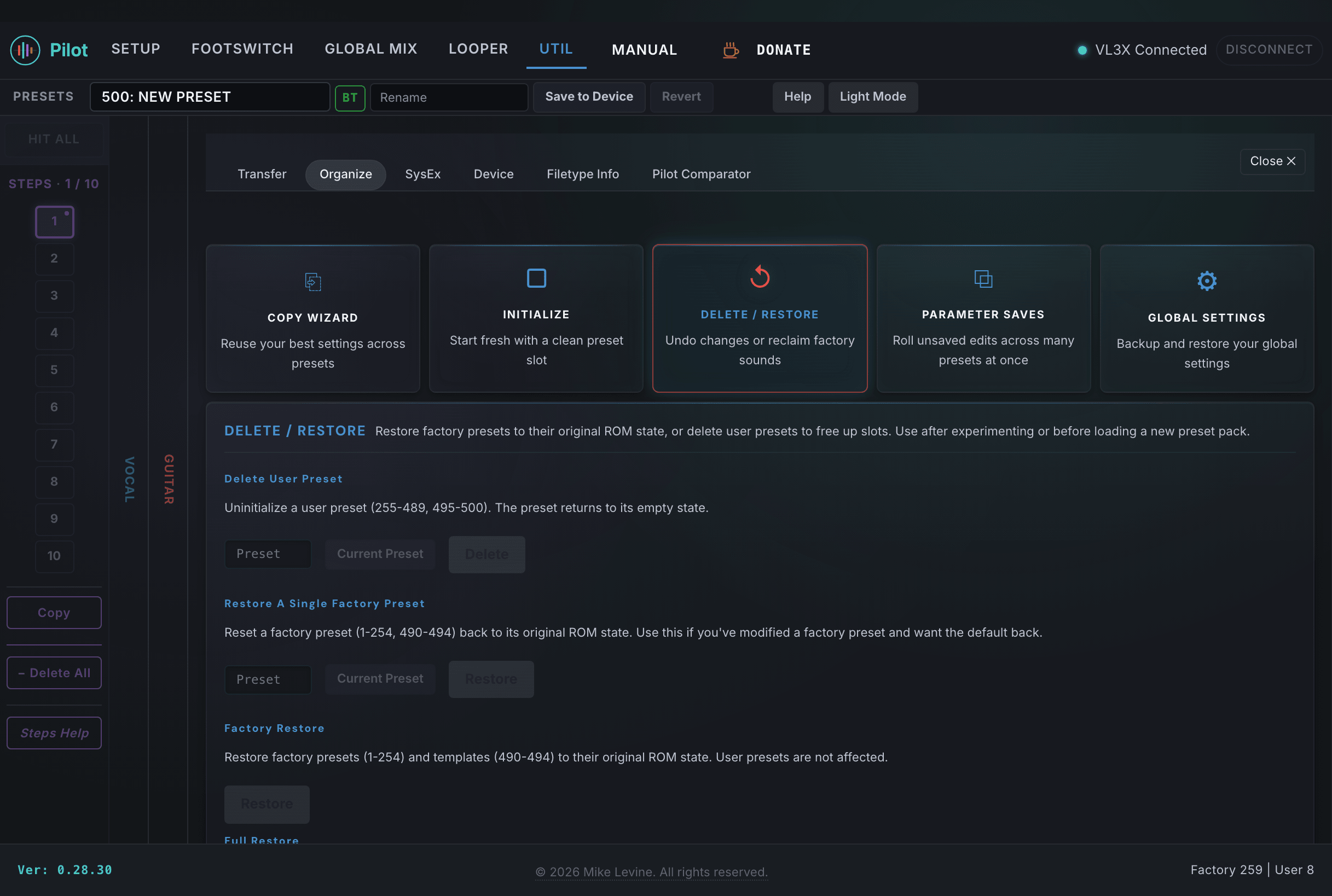
- Delete User Preset: Uninitializes a user preset (slots 255-489, 495-500), returning it to an empty state. A "Current Preset" shortcut fills in the active slot number. A confirmation gate requires you to click "Confirm Delete" before the operation executes.
- Restore Single Factory Preset: Resets one factory preset (slots 1-254, 490-494) to its original ROM state. A "Current Preset" shortcut is available when the active preset is a factory slot.
- Factory Restore: Restores all 259 factory presets (1-254 and templates 490-494) to ROM. User presets are not affected. Requires confirmation.
- Full Restore: Restores all factory presets to ROM and deletes all user presets (255-489, 495-500). DSP and global settings are not affected. Requires confirmation.
Your factory presets have been overwritten with custom versions over time. Factory Restore resets all 259 factory slots (1 through 254 and templates 490 through 494) back to ROM without touching your user presets in 255 through 489 and 495 through 500. Your custom work survives.
You want to return the unit to out-of-box state. Full Restore resets all factory presets to ROM and deletes every user preset. DSP parameters and global settings (tuner reference, contrast, etc.) are not affected by Full Restore.
Parameter Saves
Parameter Saves rolls unsaved parameter edits across many presets at once. Tweak a parameter on the loaded preset (without saving), then choose the changes to push: the live edits, or a previously saved, named "pack" of edits. Select the target slots with a range field (for example 1-10, 25, 100-105) and/or by clicking and shift-clicking cells in the 500-slot grid, then click PUSH to write only the changed parameters to every selected slot. Empty target slots are auto-initialized first, then the changes are written. This operation cannot be undone; for batches of 50 slots or more a caution reminds you to back up first.
Global Settings
Global Settings backs up and restores your device's global system configuration, separate from presets. Save Settings reads all global parameters off the device and downloads them to a .syx file (named VL3X_global_backup_*). Load Settings reads a saved file (.syx, or a legacy .json) and writes each parameter back to the device. Settings cover the device's global configuration: mic configuration, EQ, guitar input, mixer levels, and footswitch assignments. Presets are not affected by either operation. Back up before a factory reset, or use it to clone your setup to another VL3/x.
Device
The Device tab in Util has three cards: Info, Print, and Firmware.
- Info: A read-only display of the firmware version, serial number, and manufacturing date reported by the connected VL3/x, plus the connection status. A Refresh button re-reads the device, and the values also auto-refresh every 30 seconds while connected.
- Print: Scans the device and builds a printable list of your initialized presets (slot number, name, step count), then opens your operating system's print dialog so you can print to a printer or save as a PDF.
- Firmware: Updates the firmware on a connected VL3 or VL3X. The firmware file is bundled inside Pilot; Pilot compares the device's build to the bundled build and lets you decide whether to update. Before sending any firmware it automatically saves a full
.vl3xbakbackup of your presets and settings, and refuses to proceed if that backup fails.
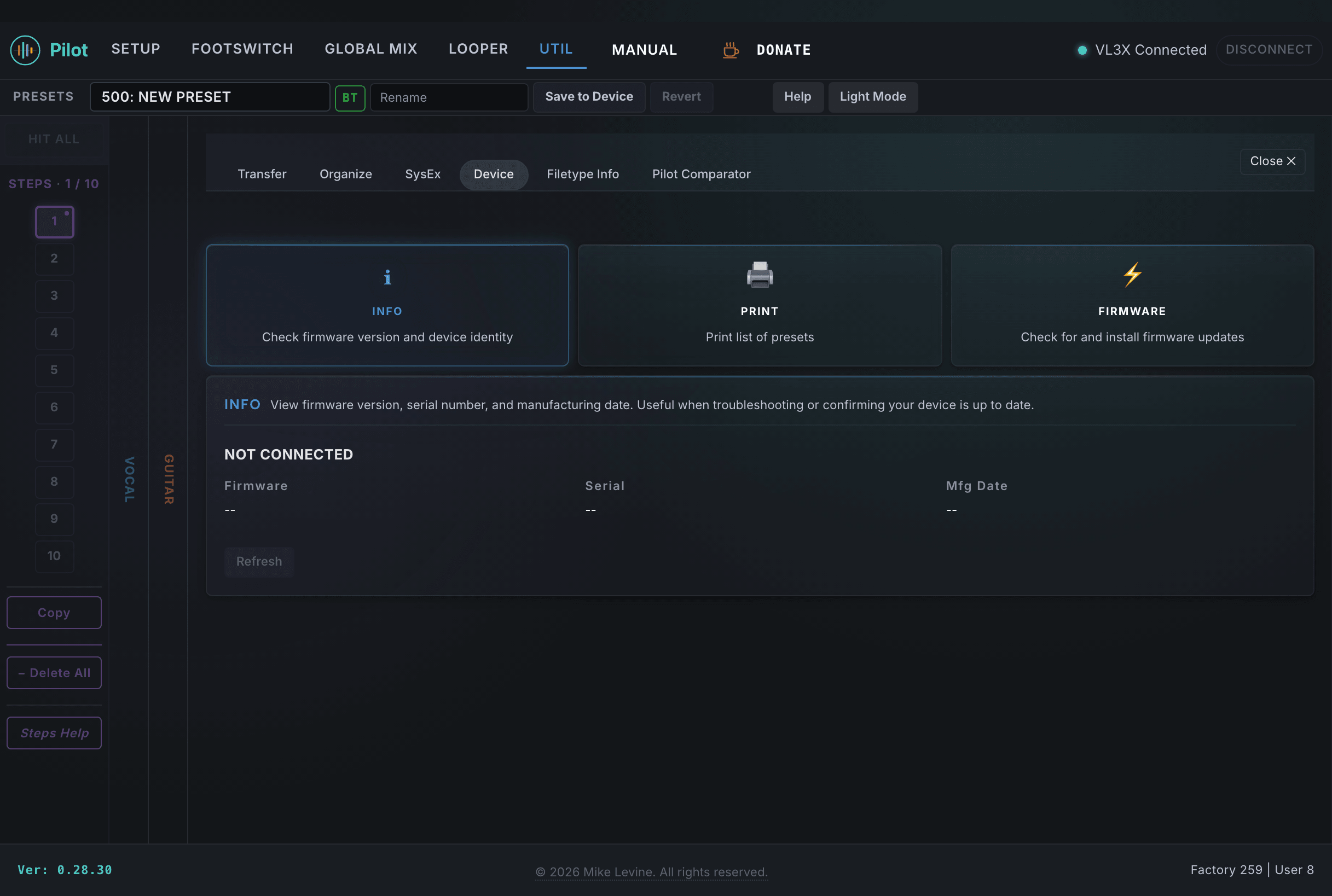
The firmware version shown on the Info card is what the device reports over SysEx. If you are comparing notes with other users or troubleshooting firmware-specific behavior, this is the number to reference.
File Type Reference
Pilot works with several file formats. Here is a quick reference for each.
Pilot Backups (.vl3xbak)
The .vl3xbak format is Pilot's full device backup: a single file holding every preset plus every global setting. It is produced by Backup/Restore All > Backup and loaded with Restore Backup. It is integrity-checked, so Pilot refuses to restore a corrupted file. Do not load a .vl3xbak via Import; Import is for sharing individual presets, not full-device backups.
Backups created by earlier versions of Pilot used a legacy .json format. Those files still open with Restore Backup; new backups always save as .vl3xbak.
TCH Bundles (.tch)
The .tch format is a multi-preset bundle: a binary container holding several presets in one file. Pilot produces .tch files with Export Presets (Save All / Save Selected), and reads them via Import to place each preset, and via Restore Backup. It is the format for sharing preset collections.
A full device backup is saved as a .vl3xbak file (see below), not a .tch.
SysEx Files (.syx)
The .syx format is a raw binary System Exclusive dump. This is the format that speaks the device's native protocol: the same bytes that flow over USB MIDI when you save or load a preset. SysEx files are universally compatible with MIDI librarians, hardware SysEx senders, and any tool that can send raw SysEx messages.
Each .syx file holds one preset. A batch export (Export Presets > Save Individual) creates one file per preset. The same .syx format is also used for global-settings-only exports produced by Global Settings > Save Settings. The byte structure follows the TC-Helicon VL3/x SysEx specification:
F0 00 01 38 ...preset data bytes... F7Manufacturer ID 00 01 38 is TC-Helicon's registered MIDI manufacturer ID.