The Input and Output pages in Setup control how audio enters and leaves the VL3/x. Input covers the aux jack, USB audio mode, headphone monitoring, and Roomsense configuration. Output handles what comes out of the XLR jacks, the guitar output jack, and the USB stream. Together they define the physical signal path for your specific rig.
Other Inputs
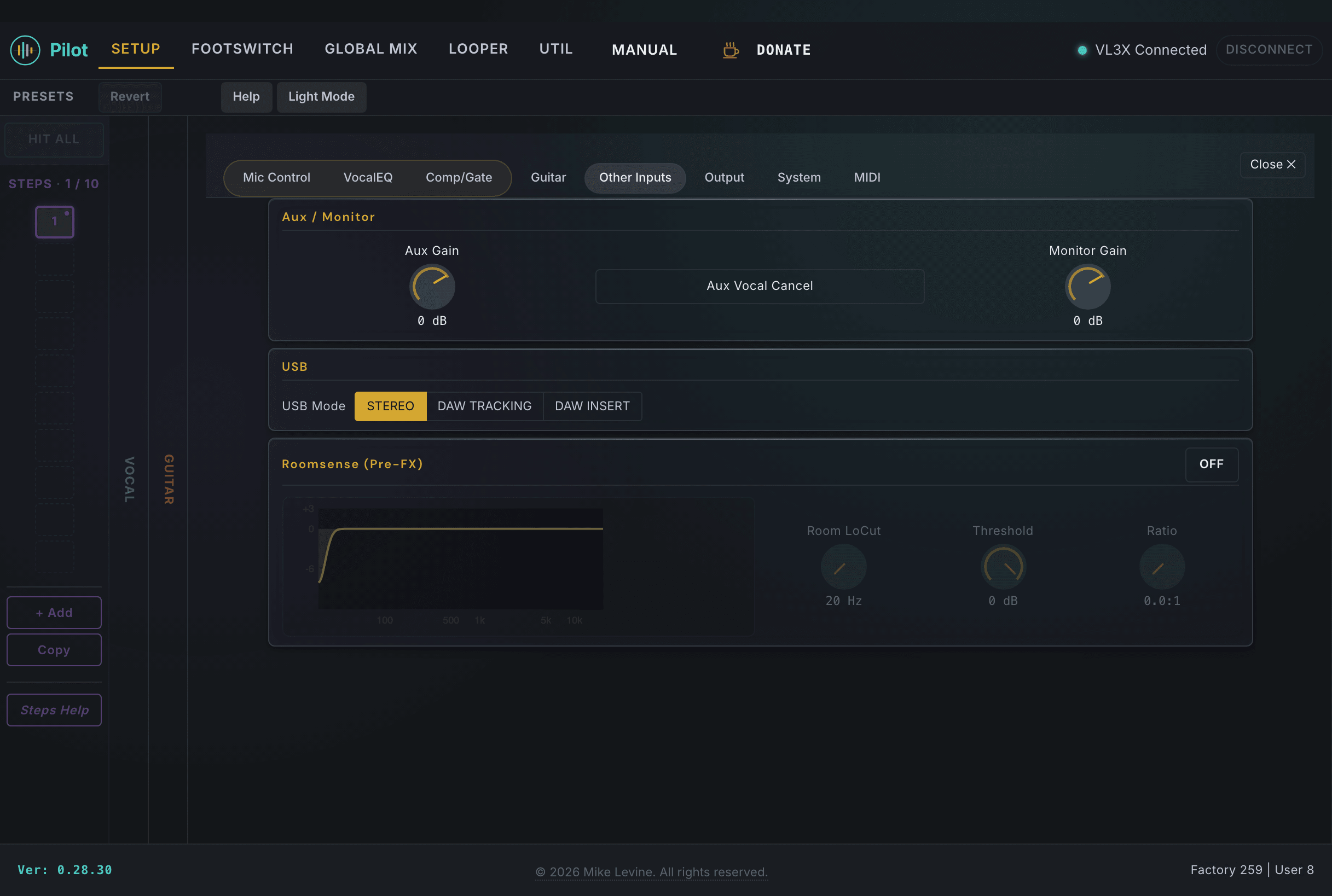
The Input section configures every source except the microphone (which is in Mic Control) and the guitar jack (which is in Guitar Setup). The biggest decision here is usually USB Mode: whether you want the VL3/x to appear as a simple stereo interface, a DAW tracking device, or a DAW insert processor.
The Input view. USB Mode, aux gain, monitor level, and Roomsense all live here.
USB Audio
Parameter
Range
What it does
USB MODE
3 values (enum)
Sets how USB audio is used. Stereo is for live performance and monitoring. DAW Tracking routes your mic and guitar as separate inputs to your recording software. DAW Insert places the VL3/x as a processing insert in your DAW's signal chain.
Note: USB MODE also affects what USB OUTPUT MODE can do. The USB output routing parameter is locked unless USB MODE is set to DAW TRACKING.
Aux Input
The 1/8-inch aux jack on the VL3/x accepts a stereo mix, typically a backing track from a phone or tablet. Aux Gain and Vocal Cancel let you set the level and optionally strip the center-panned vocals from the track.
Parameter
Range
What it does
AUX GAIN
-31 to +12 dB
Sets the level from the aux jack. Balance this against your mic and guitar signal so the backing track sits at the right level in your mix.
AUX VOCAL CANCEL
On / Off
Removes center-panned vocals from the aux signal. Most useful when playing along with a commercial recording where the original vocals are mixed in the center.
Tip: Vocal Cancel attempts to reduce the vocal from the aux input. The result depends on the mix, so it works well on some tracks and less well on others.
Headphone Monitor
Parameter
Range
What it does
MONITOR GAIN
-31 to +12 dB
Controls the headphone output level. This is the overall monitor level, separate from what's sent to the XLR outputs.
Roomsense
Roomsense is a feature that detects the chord being played in the room, feeding it to NaturalPlay for harmony key detection without you playing a guitar. It is useful when you want the harmonizer to follow the chord from a band member's instrument or from an acoustic guitar in the room.
Parameter
Range
What it does
ROOMSENSE AUTO-DETECT
On / Off
Automatically detects and routes a Roomsense microphone input. Enables key detection from a room-listening mic rather than requiring a directly plugged guitar.
GUITAR INPUT SELECT
0-2
Selects which input jack feeds the guitar signal path. Controls whether input comes from the front panel jack, an alternate input, or a combined source.
ROOM LOCUT FREQ
0-104 Hz
Low-cut filter frequency for the Roomsense mic signal. Cuts low-frequency room noise (HVAC, stage rumble) before the Roomsense signal feeds key detection.
Pre-FX Compressor
The pre-FX compressor sits before the effects chain on the input side. It catches peaks before they hit the processing engine, which can help with pitch correction stability and harmony tracking on voices with wide dynamic range.
Parameter
Range
What it does
PREFX COMP THRESHOLD
-60 to 0 dB
Signals above this level are compressed. Set it conservatively: you want it catching only the loudest peaks, not engaging on normal singing levels.
PREFX COMP RATIO
0-14 (index)
How aggressively the compressor reduces gain above the threshold. Higher index values apply more compression.
Output
The Output section determines what signal comes out of each physical output on the device: the two XLR jacks, the guitar output jack, and the USB stream. The XLR outputs are the main destination for your PA or interface, so the source selection and level setting here matter most for live performance.
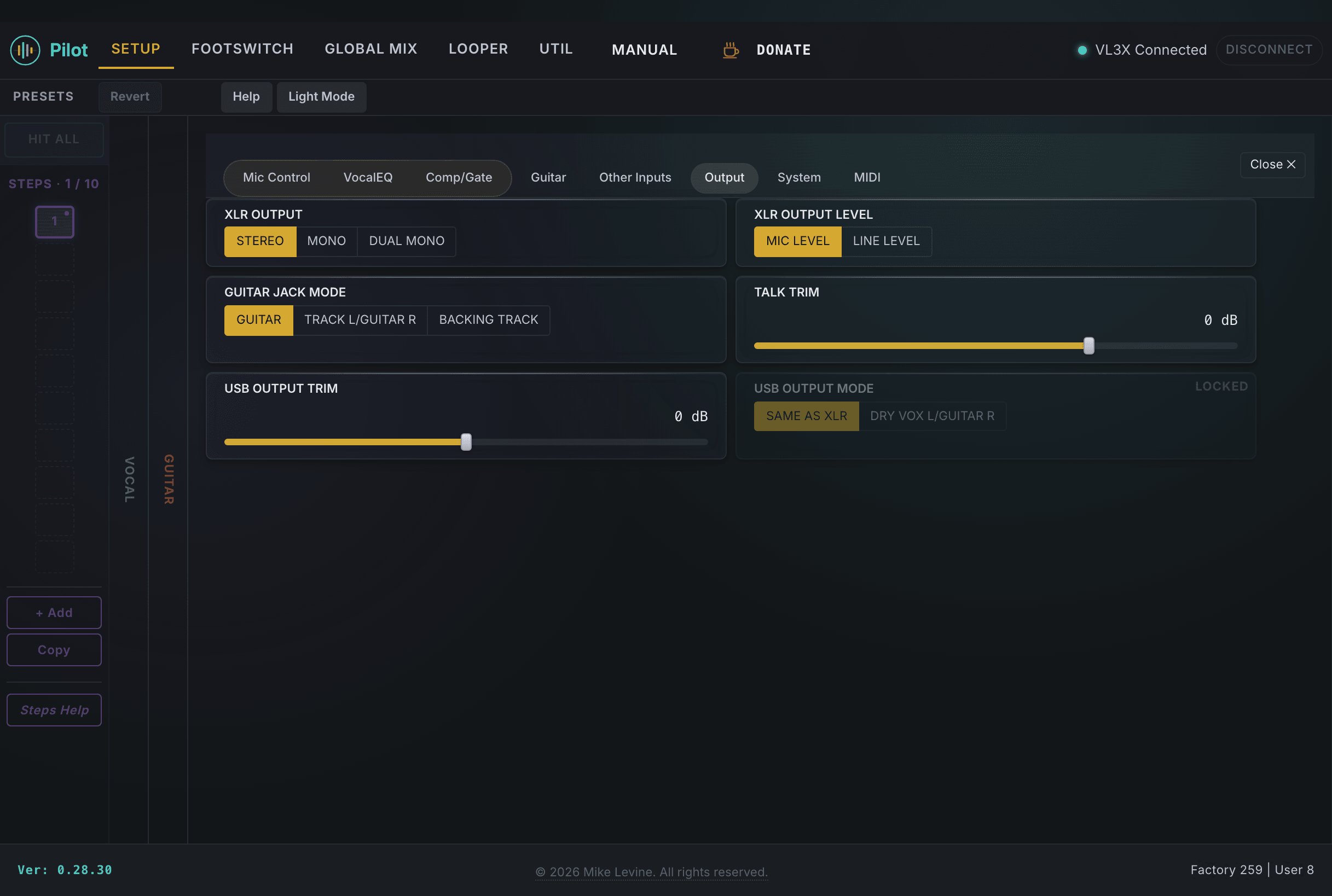
The Output view. XLR source and level at top, guitar jack routing and USB trim below.
XLR Outputs
Parameter
Range
What it does
XLR OUTPUT
3 values (enum)
Selects what signal comes out of the XLR jacks: vocal only, guitar only, or both. The VL3/x screen labels these STEREO, MONO, and DUAL MONO. Match this to how you've patched the outputs to your console or interface.
XLR OUTPUT LEVEL
2 values (enum)
Mic level or line level. Use Mic level when going to a console's mic preamp input, line level when going to a line-level input on an interface or a direct channel. Running mic level into a line input usually results in a very quiet signal; running line level into a mic input clips immediately.
TALK TRIM
-9 to +4 dB
Adjusts the output level when the Talk button is engaged. Use this to compensate if the Talk mode sounds louder or quieter than your performance level.
Tip: XLR OUTPUT LEVEL is one of the more common causes of level confusion when setting up for the first time. If the sound operator says you're too quiet or too hot at the board, check this setting before reaching for anything else.
Guitar Output Jack
Parameter
Range
What it does
GUITAR JACK MODE
3 values (enum)
Controls what comes out of the guitar output jack. Options are Guitar signal, Track L/Guitar R (stereo split for loop playback), or Backing Track. Choose based on how the guitar output is patched in your rig.
USB Output
Parameter
Range
What it does
USB OUTPUT TRIM
-12 to +12 dB
Adjusts the output level sent to your DAW over USB. Use this to match levels between the VL3/x and other tracks in your session without touching the DAW channel fader.
USB OUTPUT MODE
2 values (enum)
USB output routing: same as XLR, or DRY VOX L/GUITAR R (dry vocal on the left channel, guitar on the right channel). Only available when USB MODE is set to DAW TRACKING.